
Download Bug Shooting – Free Screen Capture & Annotation Tool for Windows, Mac, Android, iOS
Bug Shooting is a powerful, free, and secure screen capture utility designed to streamline bug reporting in team-based software and web development projects. Whether you're a developer, QA tester, or project manager, this tool simplifies the process of capturing, annotating, and sharing screenshots. With intuitive features like text notes, arrows, geometric shapes, and clipboard integration, Bug Shooting ensures that your feedback is clear and actionable.
It supports full-screen, window, and custom area captures, making it ideal for highlighting UI issues, layout bugs, or design inconsistencies. The app is lightweight, fast, and compatible with Windows, Mac, Android, and iOS—perfect for cross-platform teams. With built-in support for popular bug tracking tools like JIRA, Mantis, SpiraTest, DoneDone, and FogBugz, Bug Shooting integrates seamlessly into your existing workflow.
Updates are frequent and include performance improvements and new features such as diagonal hatching for cropped areas, customizable highlight colors, and improved server configuration. Download Bug Shooting today and make bug reporting faster, clearer, and more efficient.
Key Features of Bug Shooting
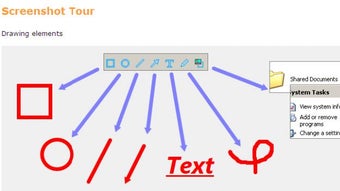
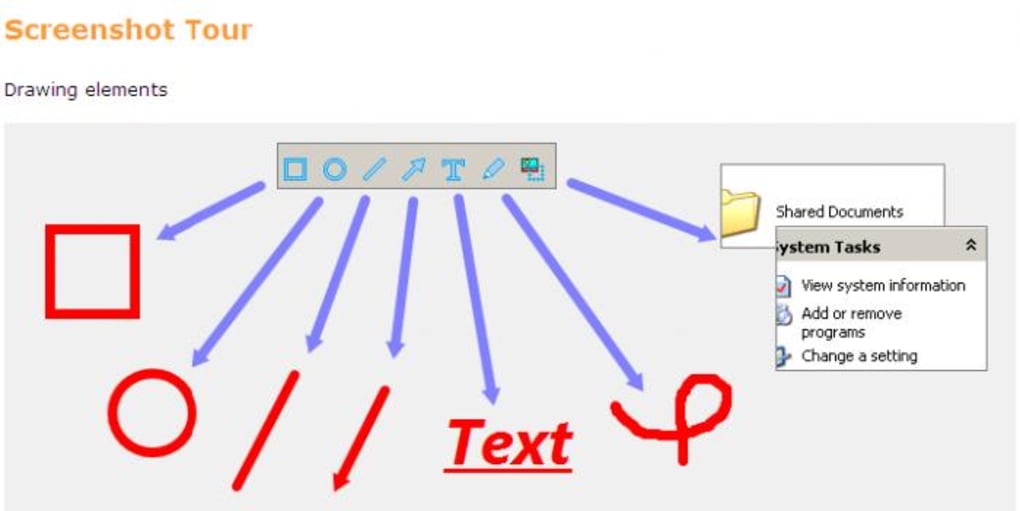
Bug Shooting stands out in the crowded field of screen capture tools thanks to its focus on usability and collaboration. One of its most powerful features is the ability to annotate screenshots directly within the app. You can add text labels, draw arrows, insert rectangles, circles, and even use a new "inverted highlight" tool to draw attention to specific areas while keeping the rest of the image visible. This is particularly useful when you want to emphasize a button, form field, or layout issue without obscuring surrounding content.
Another standout feature is its seamless clipboard integration. Unlike many screen capture tools that lock your clipboard after capture, Bug Shooting allows you to both paste images from the clipboard into the app and copy annotated screenshots back to the clipboard for immediate use in emails, Slack, or documentation. This two-way clipboard functionality saves time and reduces friction in team communication.
The app also supports multiple capture modes: full screen, active window, or custom region. This flexibility ensures you can capture exactly what you need—whether it’s a tiny UI glitch or an entire browser layout. With support for popular bug tracking systems like JIRA, Mantis, SpiraTest, DoneDone, and FogBugz, you can directly send annotated screenshots to your project management platform with just a few clicks. The updated version now includes a preselected server name in the settings, reducing setup time, and fixes known issues such as crashes when deleting and re-adding servers.
Bug Shooting also introduces a diagonal hatching effect for cropped areas, making it visually clear when a section has been trimmed. A new shortcut key (F12) for cropping improves workflow efficiency. Additionally, users can define a default highlight color in the settings, ensuring consistency across reports. These small but thoughtful improvements make Bug Shooting a polished, professional-grade tool—especially for teams that rely on visual feedback.
How to Install and Use Bug Shooting
Getting started with Bug Shooting is straightforward, whether you're on Windows, Mac, Android, or iOS. First, visit the official developer website and download the appropriate version for your device. The installer is lightweight and installs quickly—typically under 30 seconds. On Windows and Mac, simply run the downloaded file and follow the on-screen prompts. For mobile users, the app is available on the Google Play Store and Apple App Store.
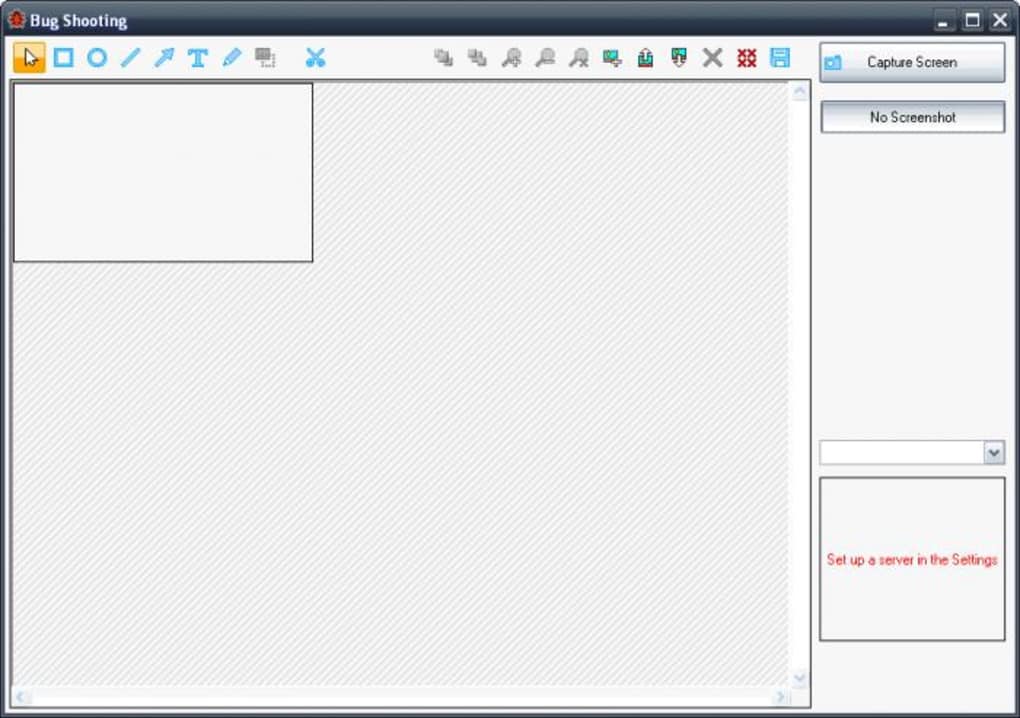
Once installed, launch Bug Shooting. The main interface is clean and intuitive. Click the “Capture” button to choose your capture mode: full screen, active window, or custom region.
After selecting your area, the app opens a simple editor where you can begin annotating. Use the toolbar to add text, draw arrows, draw shapes, or apply highlight effects. The inverted highlight tool is especially effective for pointing out issues without hiding the background.
After completing your annotations, you can save the image to your device, copy it to the clipboard, or directly send it to your preferred bug tracker. The “Send to” menu supports JIRA, Mantis, SpiraTest, DoneDone, and FogBugz—just select your project and paste the details. If you're working in a team, this feature eliminates the need to manually attach screenshots to tickets, reducing errors and delays.
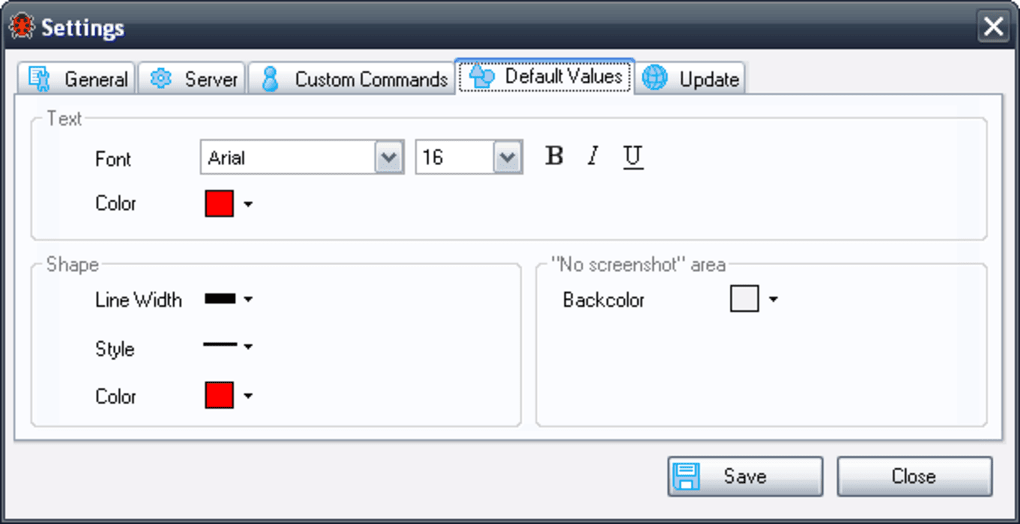
For advanced users, the settings menu allows customization of default colors, shortcut keys, and server configurations. The ability to preselect server names and define default highlight colors ensures consistency across team members. Regular updates are pushed to improve performance and fix bugs—such as the recent fix for IE8 compatibility mode issues—keeping the app stable and secure.
Compatibility & System Requirements
Bug Shooting is designed for maximum compatibility, supporting a wide range of operating systems and devices. On desktop, it runs smoothly on Windows 7 and later, including Windows 10 and 11. For Mac users, the app is compatible with macOS 10.13 (High Sierra) and newer versions. This ensures that both older and modern systems can benefit from its features without performance issues.
For mobile users, Bug Shooting is available on Android 6.0 (Marshmallow) and above, as well as iOS 12 and later. The mobile app mirrors the desktop experience, allowing you to capture and annotate screenshots on the go—perfect for QA testers who need to report issues while testing on smartphones or tablets.
Browser compatibility is also a strong point. While the desktop app works independently, the integration with web-based bug trackers like JIRA and FogBugz ensures that your workflow remains uninterrupted. The app is secure, with no data collection or telemetry—your screenshots remain private and local unless you choose to share them.
System requirements are minimal: a standard CPU, 512MB RAM (recommended 1GB), and 100MB of free disk space. This low footprint means Bug Shooting won’t slow down your machine, even during extended use. Whether you're on a budget laptop or a high-end workstation, the app performs reliably across all platforms.
Pros and Cons of Bug Shooting
- Pros:
- Free to download and use with no hidden fees
- Intuitive interface with minimal learning curve
- Two-way clipboard integration for easy sharing
- Supports multiple bug tracking tools (JIRA, Mantis, SpiraTest, etc.)
- Customizable annotation tools and default settings
- Lightweight and fast, even on older systems
- Regular updates with bug fixes and new features
- Secure—no data collection or telemetry
- Cons:
- Mobile app lacks some advanced features found in desktop version
- No built-in cloud storage for saving screenshots
- Limited export formats (mainly PNG and JPG)
- No built-in OCR for text extraction from images
- Basic version lacks advanced collaboration tools (e.g., real-time editing)
Frequently Asked Questions (FAQ)
Conclusion: Why You Should Download Bug Shooting Today
Bug Shooting is more than just a screen capture tool—it’s a productivity booster for any team involved in software development, QA, or design. Its clean interface, powerful annotation tools, and seamless integration with major bug tracking systems make it an essential addition to your workflow. Whether you're reporting a minor UI glitch or a major layout issue, Bug Shooting ensures your message is clear, professional, and actionable.
With free access, cross-platform compatibility, and regular updates, it’s one of the most reliable tools available. The two-way clipboard feature alone saves hours of manual work. And the fact that it’s secure and privacy-focused makes it ideal for enterprise use.
Don’t waste time with clunky tools that complicate bug reporting. Download Bug Shooting today and experience a faster, smarter way to share feedback. Click the download button now and take your team’s collaboration to the next level.







